Searching for a Location
If you have a very large map with a lot of locations, it can be difficult to quickly spot each one on the map. If you have a specific location in mind but you can't find it on the map, the search bar or the location selector can help you.
Using the Search Bar
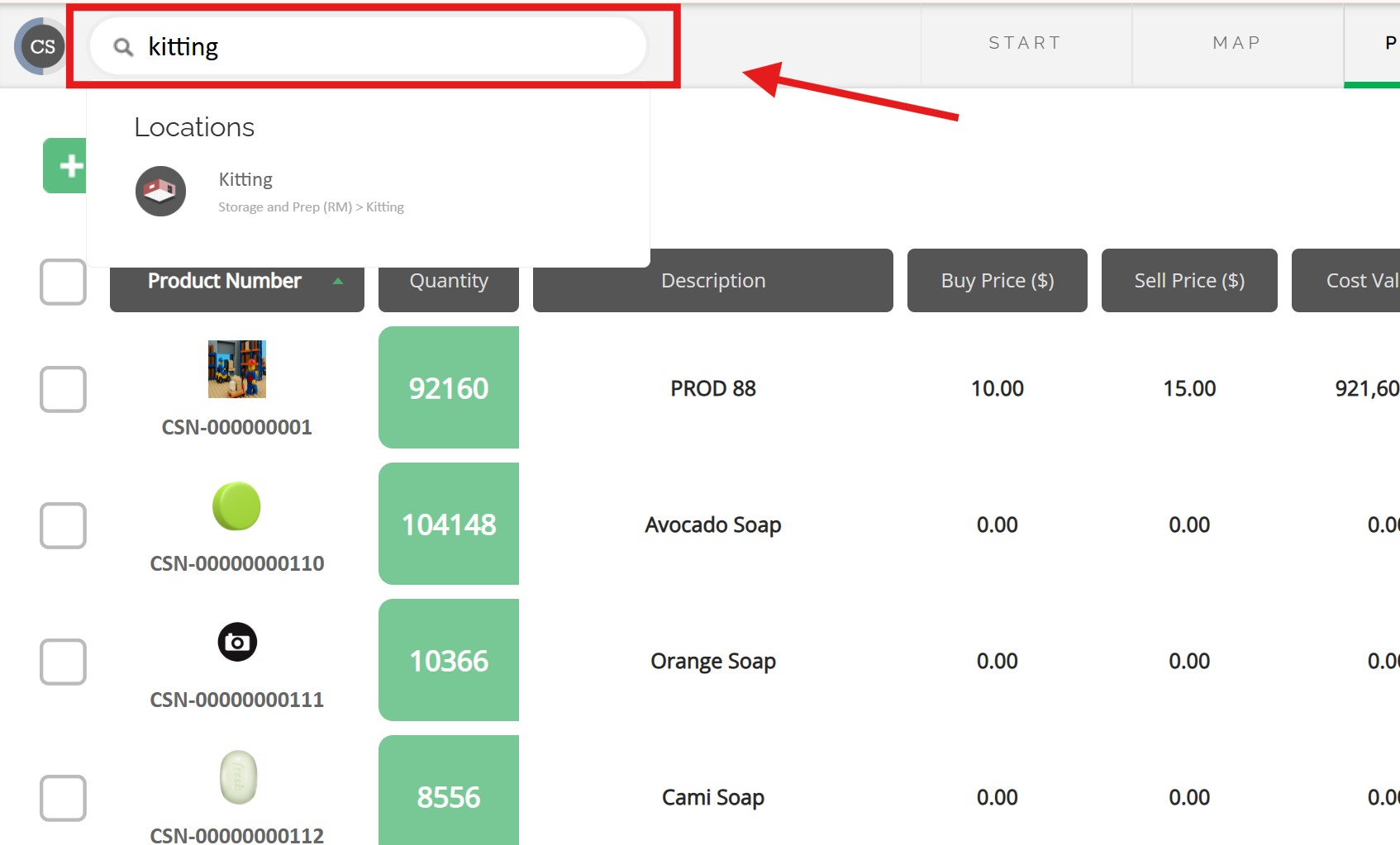
- Type the name of a location in the search bar, and the search results will appear below as you type.
- If the location you are looking for is a sub-location, the location(s) above it will also be shown in the results.
- If there are multiple locations with the same name, they will all appear in the results.
- The search bar is located in the top menu on the left and can be accessed from any page of your account.
Using the Location Selector
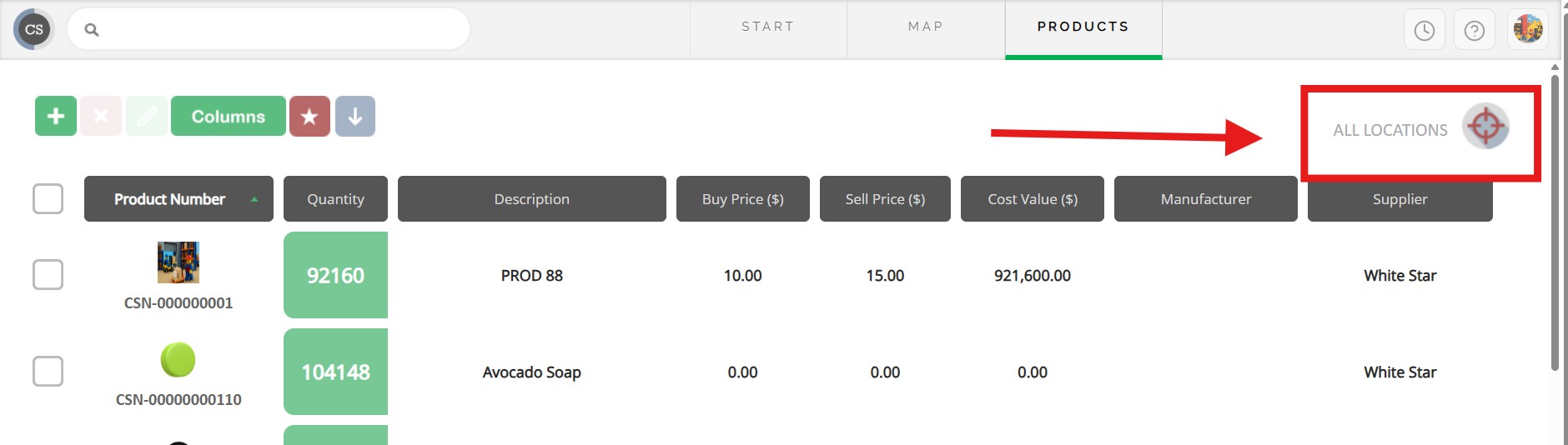
- The location selector can be found in the top right corner of the Products page.
- Hover your mouse over the selector, and all the primary locations on your map will appear.
- Hover your mouse over any location to view its sub-locations.
Using a barcode scanner
If you have set barcodes for your locations, you can use the Quick Scan function to quickly identify locations during Check-in, Check-out, and Transfers.