How to check items IN/OUT with a spreadsheet
For bulk operations, you can use a spreadsheet. This is especially useful when checking multiple items in or out, or when transferring products between different locations.
Checking Items In/Out Using a Spreadsheet
- From the Map dashboard, hover your cursor to your preferred location and wait for the CHECK IN and CHECK OUT button to appear.

-
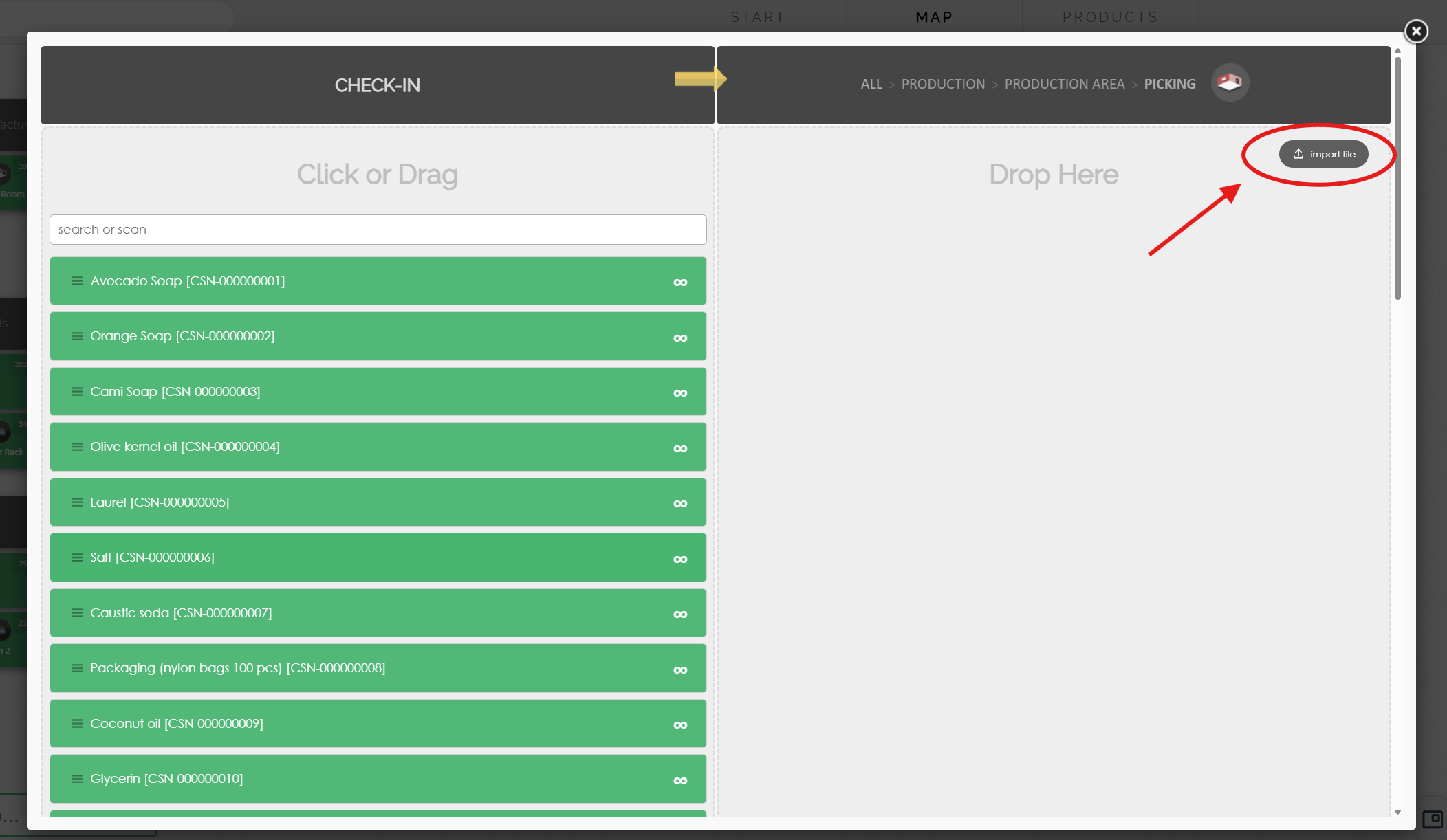
Click the ‘Import From File’ Button. You'll find this button in the upper-right corner of the page.
- Upload Your File
- Select and upload a CSV file. Your spreadsheet should contain a Product Number column and a Quantity column. For example, see the SAMPLE CSV FILE
- You can create a CSV file using spreadsheet software such as Microsoft Excel.
- Match the Fields
- CyberStockroom will automatically detect the fields from your spreadsheet. The detected fields will appear on the left side of the screen.
- Match the Product Number and Quantity fields to their respective columns. To do this, click, hold, and drag the fields.
- Click Next to proceed.
-
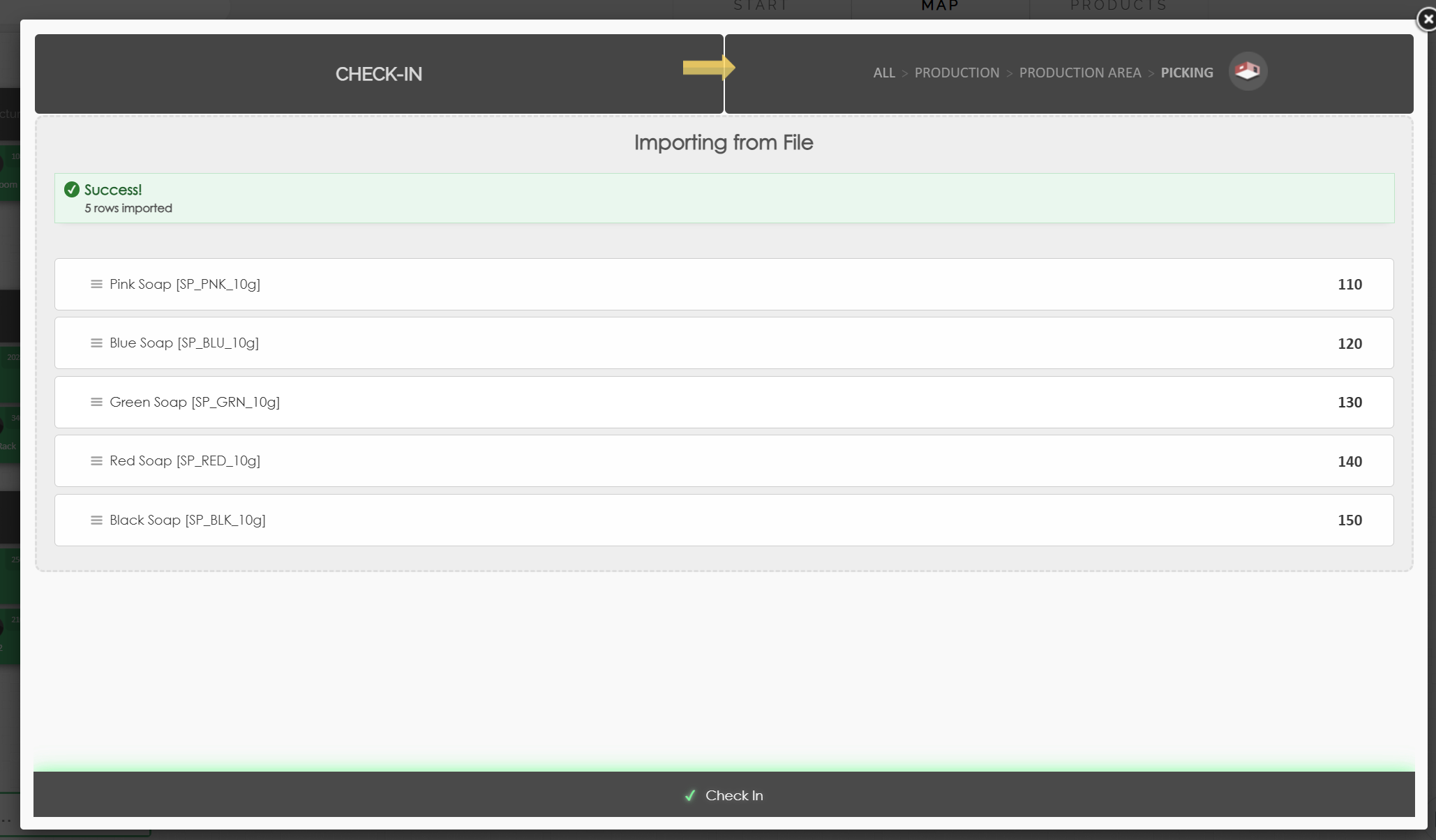
Double-check the list of products imported from your spreadsheet, then click the Check In or Check Out button to proceed.
- Add a Comment (Optional)
- Write a comment for the transaction.
- Click ‘Save’.
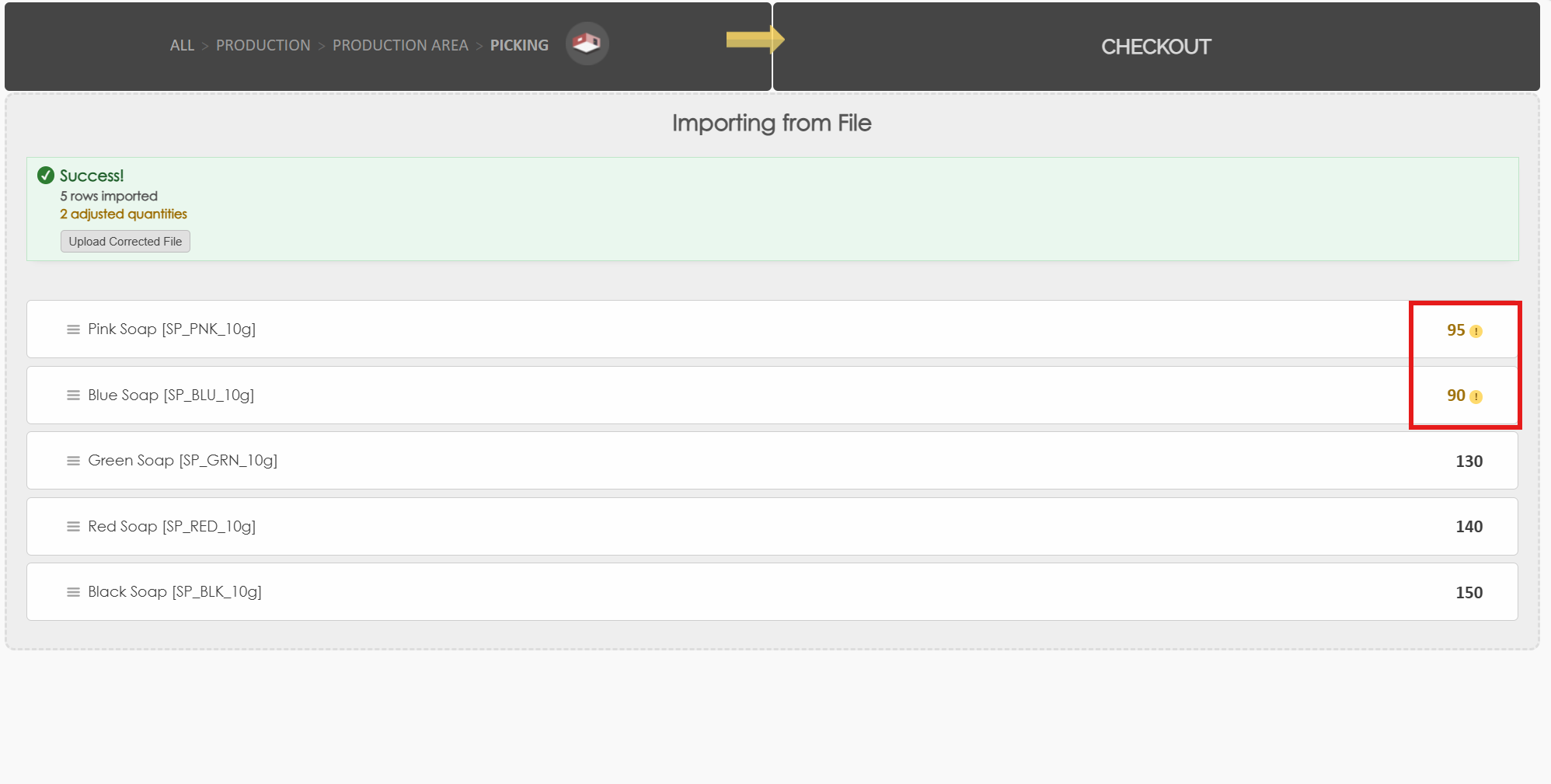
- The product list window will indicate if you are checking out products that exceed the available quantity in that location.
- You will have the option to upload a corrected file.
-
If you choose to proceed with the original file and quantity, only the available products will be checked out.